

Quickstart guide
Get from zero to full cloud cost visibility in under 10 minutes. This guide walks you through connecting your first cloud account and exploring your cost data.
Prerequisites
- A running CLARITY instance (provided by your administrator)
- Cloud credentials with read-only access to billing and resource APIs
- A modern web browser (Chrome, Firefox, Safari, or Edge)
Step 1: log in
Navigate to your CLARITY instance URL and sign in with the credentials provided during setup.
TIP
If this is a fresh installation, your administrator will have set up an initial admin account during deployment.
Step 2: add your first Cloud account
- Navigate to the Organizations page in the sidebar
- Click the Add Account button in the top-right corner
- Select your cloud provider — AWS, Azure, or GCP
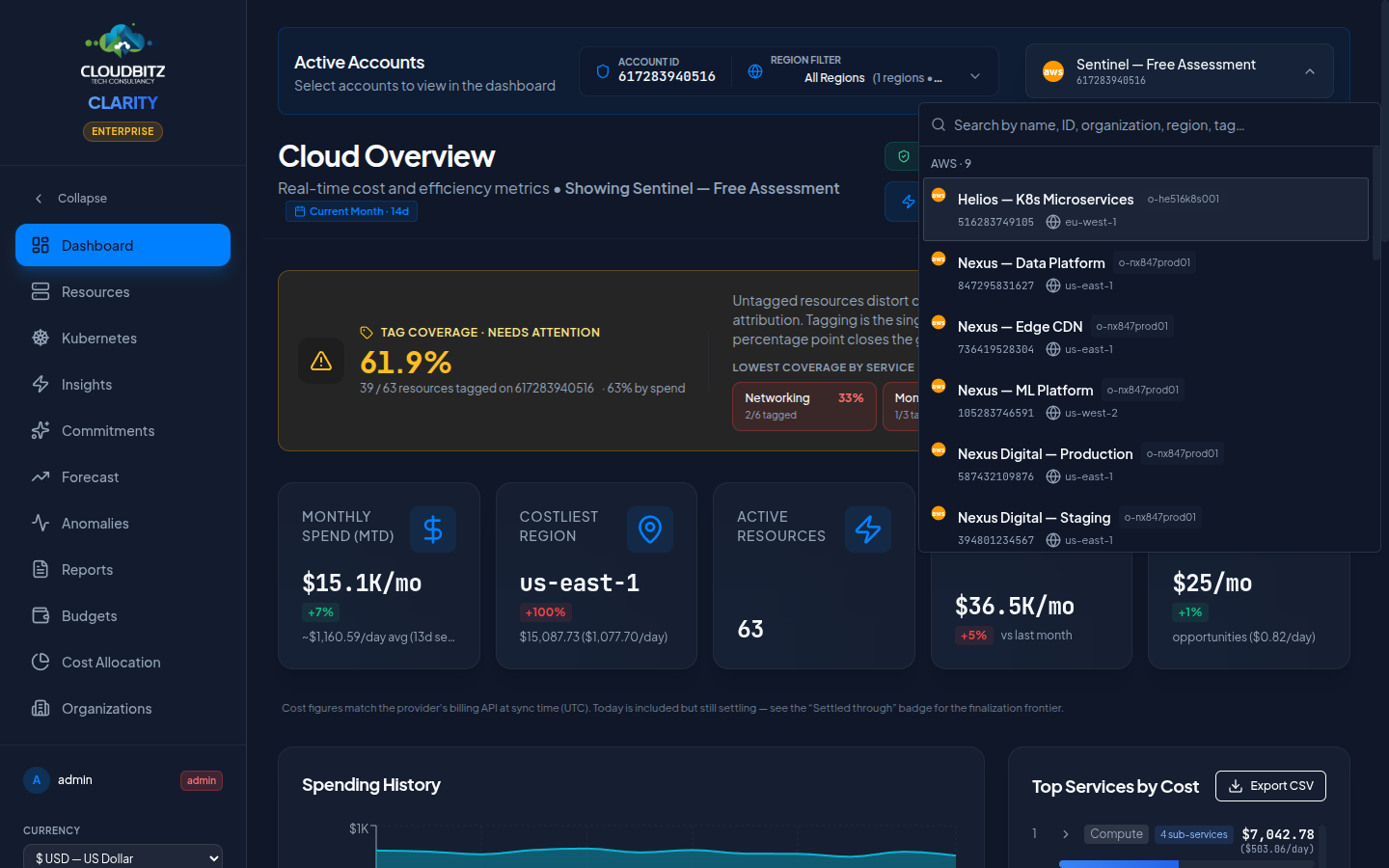
- Fill in a Display Name and your provider credentials
AWS credentials
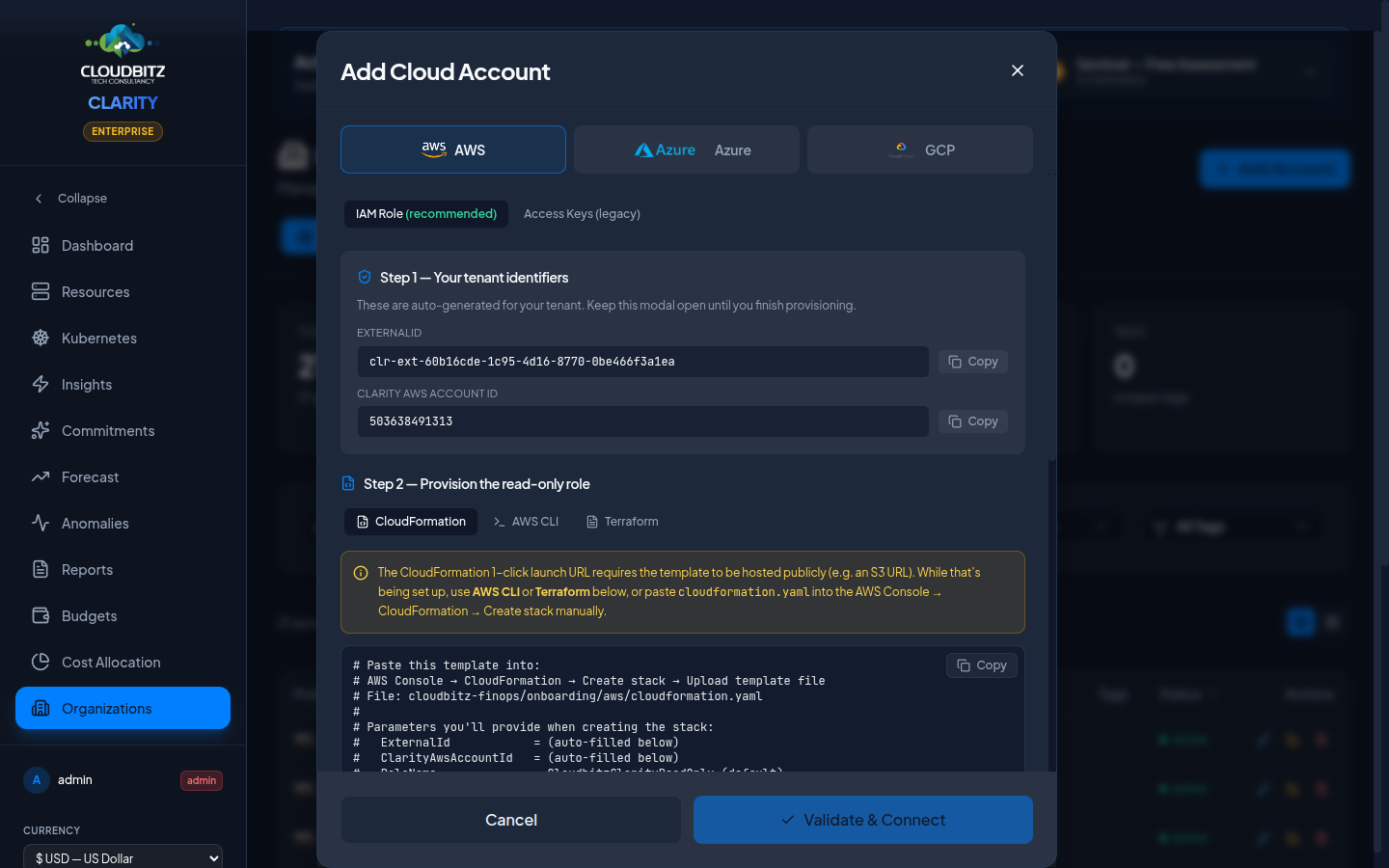
| Field | Description |
|---|---|
| Display Name | A friendly label (e.g., "Production AWS") |
| Access Key ID | Your IAM user access key (starts with AKIA...) |
| Secret Access Key | Your IAM user secret key |
| Account ID | Your 12-digit AWS account ID |
Azure credentials
| Field | Description |
|---|---|
| Display Name | A friendly label (e.g., "Production Azure") |
| Subscription ID | Your Azure subscription ID |
| Tenant ID | Your Azure AD tenant ID |
| Client ID | Service Principal application (client) ID |
| Client Secret | Service Principal client secret |
GCP credentials
| Field | Description |
|---|---|
| Display Name | A friendly label (e.g., "Production GCP") |
| Project ID | Your GCP project ID |
| Service Account Email | The service account email address |
| Private Key | The private key from your JSON key file |
- Optionally add tags (e.g.,
prod,dev) to organize your accounts - Click Create Account to store and validate your credentials
WARNING
Ensure your cloud credentials have read-only access. CLARITY never modifies your cloud resources. See the Cloud Setup guides for minimum required permissions per provider.
TIP
All credentials are encrypted at rest using AES-256 encryption before being stored. They are never logged or exposed through the interface.
Step 3: wait for initial sync
Once your credentials are validated, CLARITY automatically begins syncing your cloud data. The initial sync typically takes 2-5 minutes depending on the size of your environment.
You can monitor sync progress in the sidebar — a sync indicator will appear while data collection is in progress.
During the sync, CLARITY will:
- Pull billing data from your cloud provider's cost management APIs
- Discover all active resources across regions
- Collect performance metrics for optimization analysis
- Fetch existing commitment details (Reserved Instances, Savings Plans, CUDs)
- Query for provider-native recommendations
Step 4: explore your dashboard
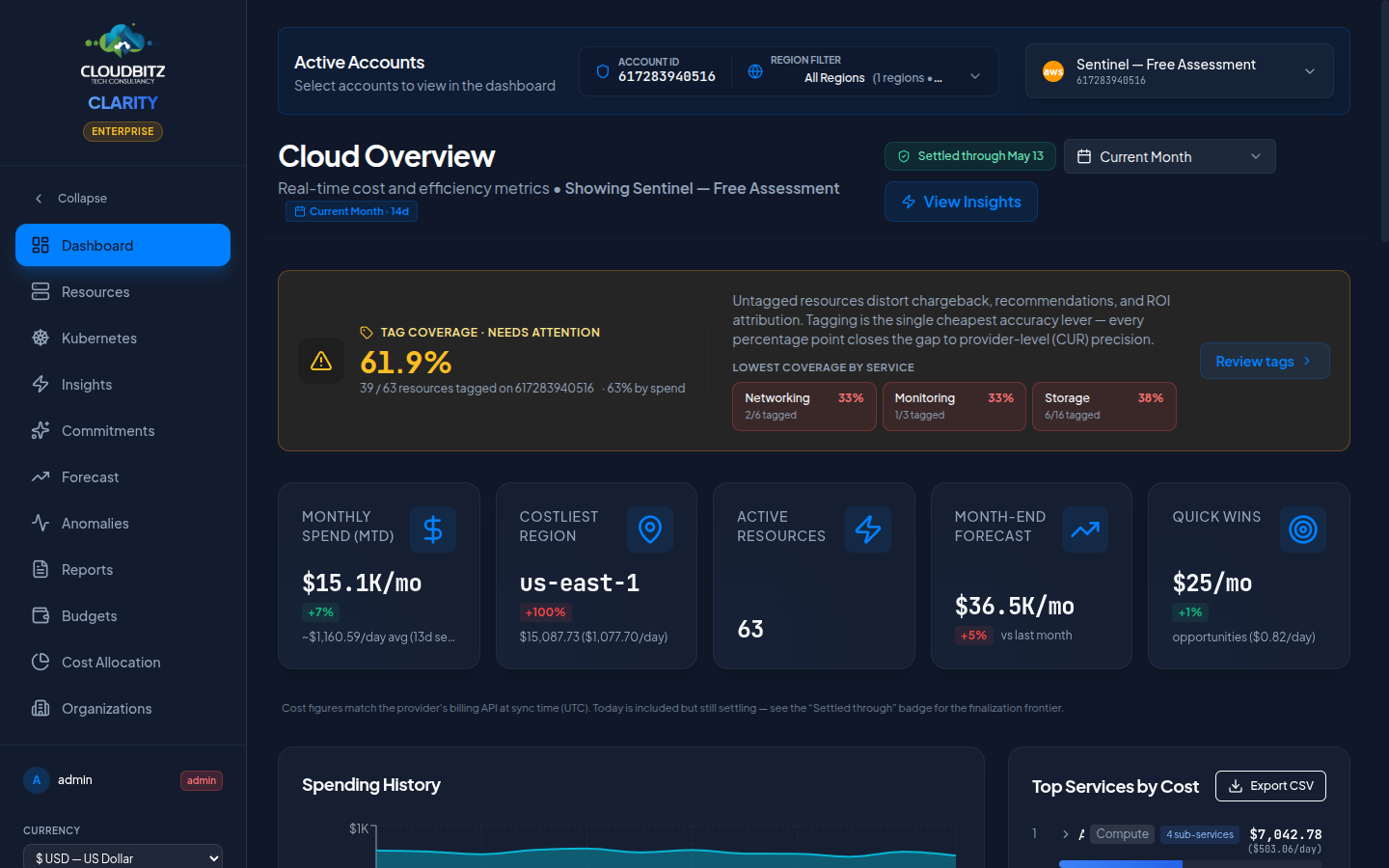
Once the sync completes, your Dashboard will populate with:
- Total spend across all connected providers
- Month-over-month cost comparison
- Spend by provider breakdown
- Top services by cost
- Regional distribution of spend
- Cost forecast for the current billing period
Step 5: review recommendations
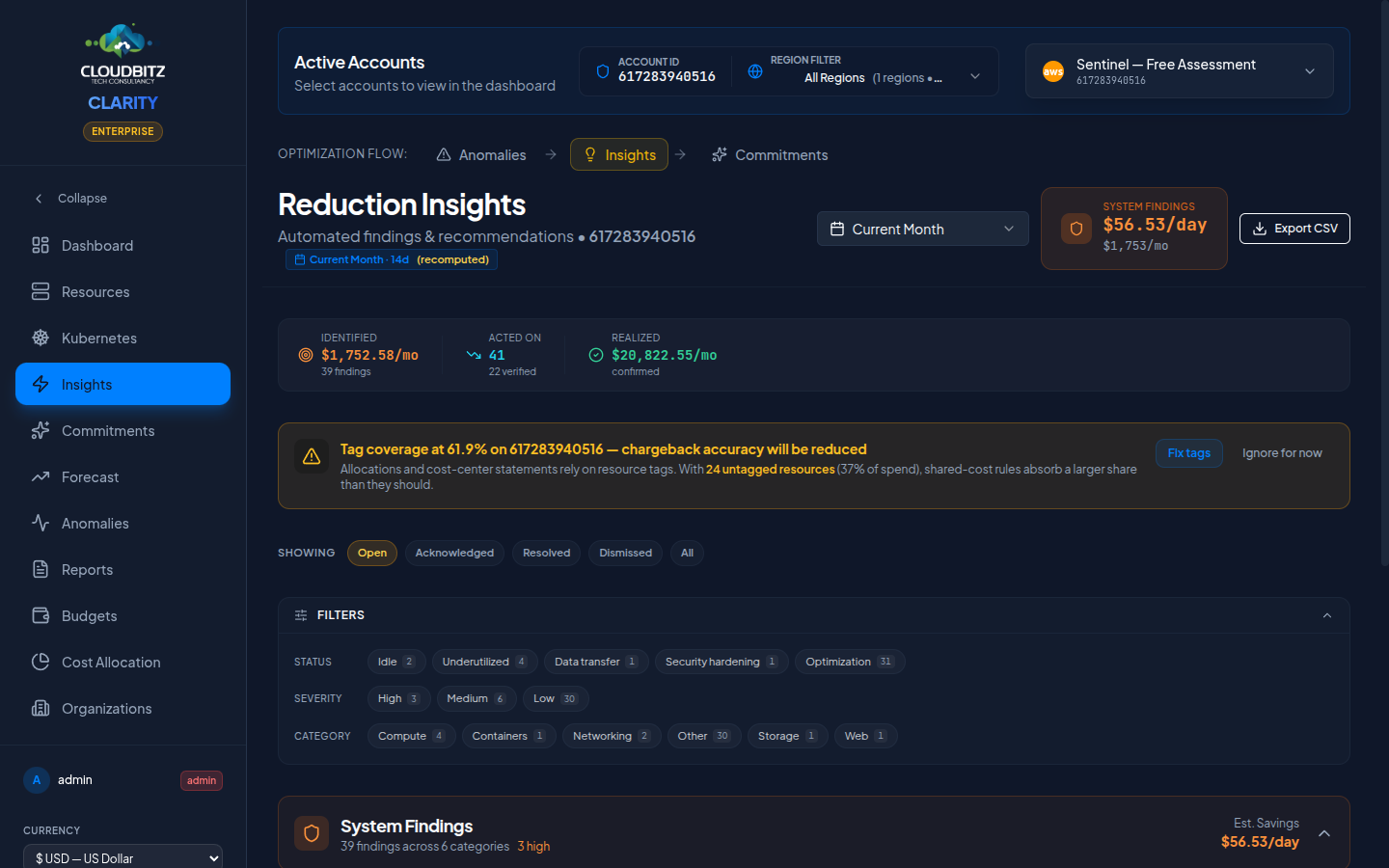
Navigate to the Insights page to see optimization recommendations:
- Idle resources — resources with near-zero utilization that can be terminated
- Underutilized resources — resources that can be downsized to a smaller instance type
- Cost optimization — provider-native recommendations for savings
TIP
If AI analysis is enabled on your instance, every recommendation is automatically validated by AI before being surfaced. You can also click Explain on any insight for a detailed, context-aware explanation.
A note on cloud-API charges
CLARITY queries your cloud provider's APIs every sync cycle to keep dashboards fresh. Most of those APIs are free — but AWS Cost Explorer charges $0.01 per request, and CLARITY uses it as the primary AWS cost source. The honest disclosure:
| What we call | Frequency | Approximate AWS bill impact per account |
|---|---|---|
Cost Explorer — scheduled sync (GetCostAndUsage + GetCostAndUsageWithResources + sub-service decomposition + charge-category pass) | 5-20 requests per account per day (AWS syncs once every 24 h by default) | ~$1.50-$6 per month |
| Cost Explorer — Forecast and Commitments pages | only when someone opens them, and this is the larger half | $0 if never opened; measured up to 47 requests on one active day |
| Cost Explorer — one-time historical backfill, first connect only | once per account, ever | a few cents, once |
| Pricing API, EC2/RDS/etc. describe APIs, CloudWatch metrics | every sync | $0 (within free tiers for typical fleet sizes) |
| Azure ARM list / Resource Graph / Azure Monitor metrics | every sync | $0 (within free tiers) |
| GCP Cloud Asset / Cloud Monitoring / Cloud Billing Catalog | every sync | $0 |
These are measured figures, not estimates: CLARITY counts every billable request it makes and records it, so the API Fees tab on the Organizations page shows you the real number for your own accounts rather than a projection.
For a typical AWS bill of $5K-$200K/month, Cost Explorer fees are well under 0.1 % of the spend you're optimizing — small in absolute terms, but we want you to know the line item is there before you spot it on your AWS bill.
Why the range is that wide, and what the extra call and the backfill are for
The sync has a floor, and the floor is not the whole story. Measured on this deployment, the scheduled sync issued exactly 10 Cost Explorer requests a day across two accounts — 5 each — on eleven of fourteen days. On the twelfth it issued 40, on the same two accounts with nothing changed: the per-resource pass returned 3,747 cost rows that day against 271 the day before, and each extra page of results is a separately billed request. The floor is how many queries we issue; the ceiling is how much your accounts have to say.
An earlier version of this page said "one account cost 10 requests a day and the other 30". That was wrong in two ways worth naming, because both are easy mistakes to repeat: 10 was the total for both accounts, not one account's figure, and 30 was a day on which an engineer ran manual syncs while working on the product. A per-account figure and a per-deployment figure are different numbers, and a busy day is not a typical one.
Opening the Forecast or Commitments page costs money, and it costs more than the sync. Those two screens query Cost Explorer directly. Across the whole measured period, 47% of every Cost Explorer request came from someone opening one of them — 176 requests against 200 from all scheduled syncs combined. One day of active use added 47. Leaving them closed costs nothing at all.
The charge-category pass is a second, unfiltered Cost Explorer query grouped by service and record type. It is what lets CLARITY tell consumption apart from taxes, credits and one-off purchases, so the total we analyze can be reconciled against the invoice you actually receive. Without it we could show you a number but not prove it matched your bill.
The historical backfill runs once, when you first connect an account, and pulls up to 12 months instead of the 3-month rolling window routine syncs use. It is what makes month-over-month comparison possible on day one rather than three months in. It is guarded so it can never repeat by accident — re-adding the same account does not pay for it again — and the exact number of requests it made, plus the cost they imply, is written to your instance's logs.
Tunable by your operator
The sync cadence is configurable, but it is a deployment-level setting, not an in-app one. There is no sync-schedule screen in CLARITY. Whoever runs your instance can change the AWS_SYNC_INTERVAL_HOURS, AZURE_SYNC_INTERVAL_HOURS and GCP_SYNC_INTERVAL_HOURS environment variables; the trade-off is dashboard freshness. Defaults are AWS every 24 h, Azure and GCP every 6 h.
What we deliberately don't ingest
We intentionally do not ingest the AWS Cost & Usage Report (CUR) or VPC Flow Logs as primary data sources. Both would add real customer cost (S3 storage + Athena queries for CUR; vended-logs charges for Flow Logs — easily $50-500/mo per busy VPC).
CUR is ruled out, not deferred. It is delivered on a 24-48 hour lag, and reading your spend without that lag is a deliberate part of what CLARITY is. We are not planning to adopt it later, and it is not an Enterprise upgrade path. The practical consequence, stated plainly: cent-level chargeback parity with CUR-based platforms is not something we offer. If your finance process genuinely requires reconciling allocation to the cent against the raw billing file, a CUR-based tool is the honest recommendation. What we do instead is reconcile the total we analyze against your invoice, using a charge-category query on the live API — same day, no export to wait for.
VPC Flow Logs remain a deferred option rather than a rejection: the cost is real but the trade-off is different, and inter-AZ analysis has a lighter-weight path.
What's next?
Now that you have your first cloud account connected, explore the full feature set:
- Resources — Browse your complete cloud resource inventory with cost attribution
- Anomaly Detection — Set up alerts for unexpected cost spikes
- Forecasting — Review projected spend for budget planning
- Cost Allocation — Configure chargeback and showback for your teams
- Commitments — Review RI, Savings Plan, and CUD recommendations
- Reports — Generate executive reports for stakeholders
Need to connect additional providers? Repeat Step 2 for each cloud account. CLARITY supports multiple accounts per provider.