

User management
CLARITY supports multiple user accounts with role-based access control. This guide covers creating, managing, and maintaining user accounts.
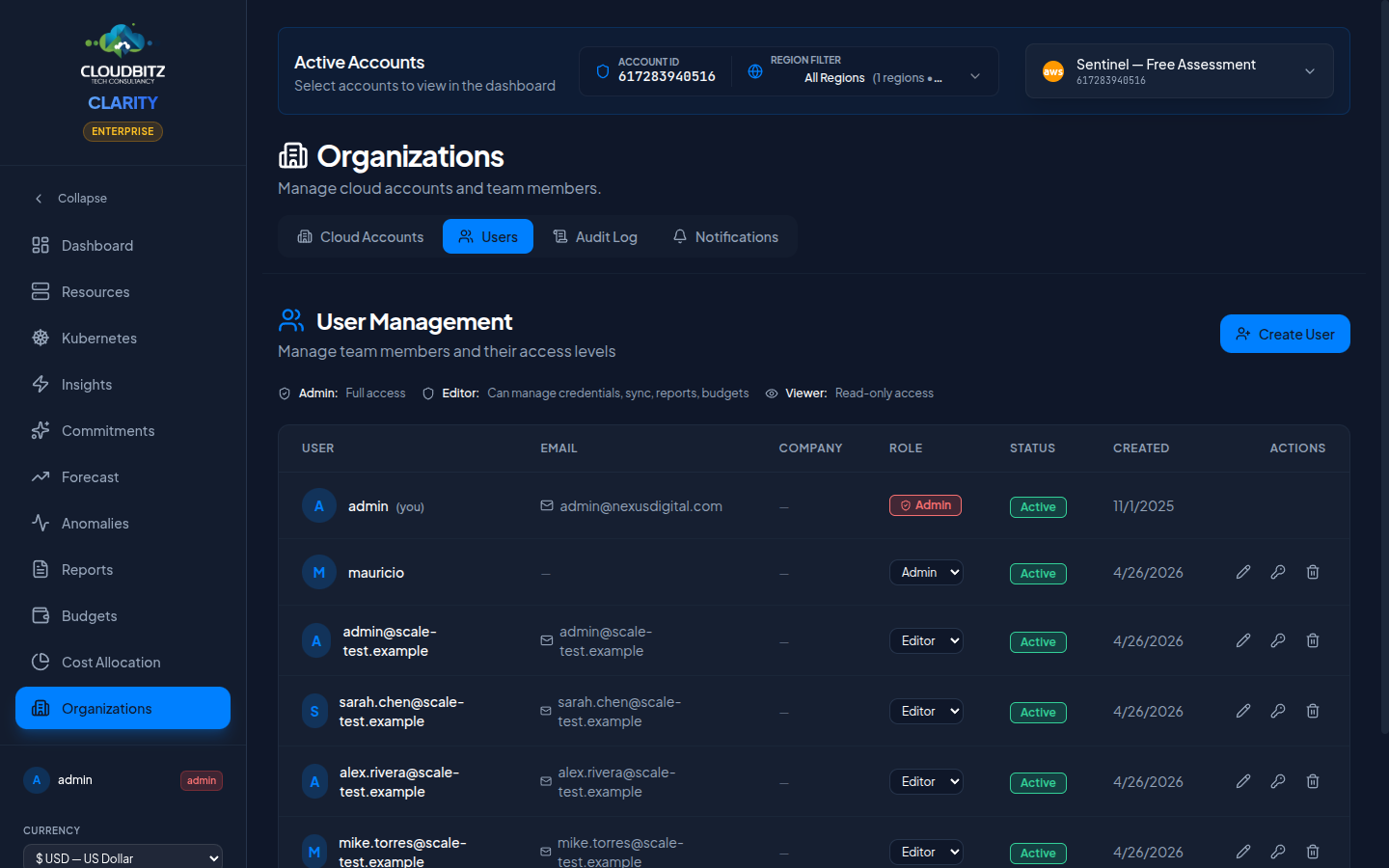
Creating a user account
Administrators create new user accounts from the Users tab on the Organizations page:
- Go to Organizations and open the Users tab
- Click Create User
- Fill in the fields — all of these are required:
- Email — also becomes the login identifier
- Password — must meet minimum complexity requirements
- First name, Last name, Company
- Role — Admin, Editor, or Viewer (see Roles & Permissions)
- Click Save
The new account is active immediately and the user can log in straight away.
A corporate email address is required
Public mailbox domains — gmail.com, yahoo.com, hotmail.com, outlook.com and similar — are rejected. Use a company domain.
No email is sent for admin-created accounts
Accounts created this way are pre-verified and no verification email is sent. Tell the user their password out of band. Email verification applies only to users who sign themselves up.
INFO
New users are assigned the Viewer role by default unless an administrator explicitly selects a different role.
User profile fields
Each user account includes the following profile information:
| Field | Required | Editable by |
|---|---|---|
| Username | Yes — derived from the email | Nobody; it is set at creation and never changes |
| Yes | Admin only (Business+) | |
| First Name | Yes | Admin only (Business+) |
| Last Name | Yes | Admin only (Business+) |
| Company | Yes | Admin only (Business+) |
| Role | Yes | Admin only (Business+) |
There is no self-service profile editing
The only thing a user can change about their own account is their password. Everything else must be changed by an administrator, and editing another user's profile or role requires a Business or Enterprise subscription.
Email verification
Email verification applies to self-registered users only.
- A verification email is sent to the address given at sign-up
- The email contains a verification code to copy and paste — not a clickable link
- The user pastes the code into the verification screen
- The email status updates to Verified
The code expires after 30 minutes. A user who has not yet verified can request a new one from the verification screen.
Changing an email address does not re-verify it
When an administrator changes a user's email address, no verification message is sent and the address stays marked as verified. Confirm the new address is correct before saving it.
Removing users
There is currently no deactivate/reactivate function
CLARITY does not yet support suspending an account while keeping it. The only way to remove someone's access is to delete the user, which is permanent.
For a contractor or an employee changing teams, the usual workaround is to change the account's password and set its role to Viewer until you know whether it is needed again.
To remove a user, open the Users tab on the Organizations page and delete the account. Audit-log entries already written for that user's past actions are retained.
Password reset
There are two ways to reset a password:
- Self-service — a user can change their own password (requires their current password)
- Admin reset — an administrator can set a new password for any user from the Users tab
Admin reset is the only password-recovery path in CLARITY. There is no "forgot password" email flow, so a user locked out of their account needs an administrator.
WARNING
After an admin password reset, advise the user to change their password on first login.
What users can change themselves
Only their password. There is no Profile page in CLARITY. Name, company, email, username and role are all administrator-managed; see the table above.
Next steps
- Understand Roles & Permissions for access control
- Review Security practices for your deployment