

Roles & permissions
CLARITY uses a three-role access control system to manage what users can see and do. Every user is assigned exactly one role.
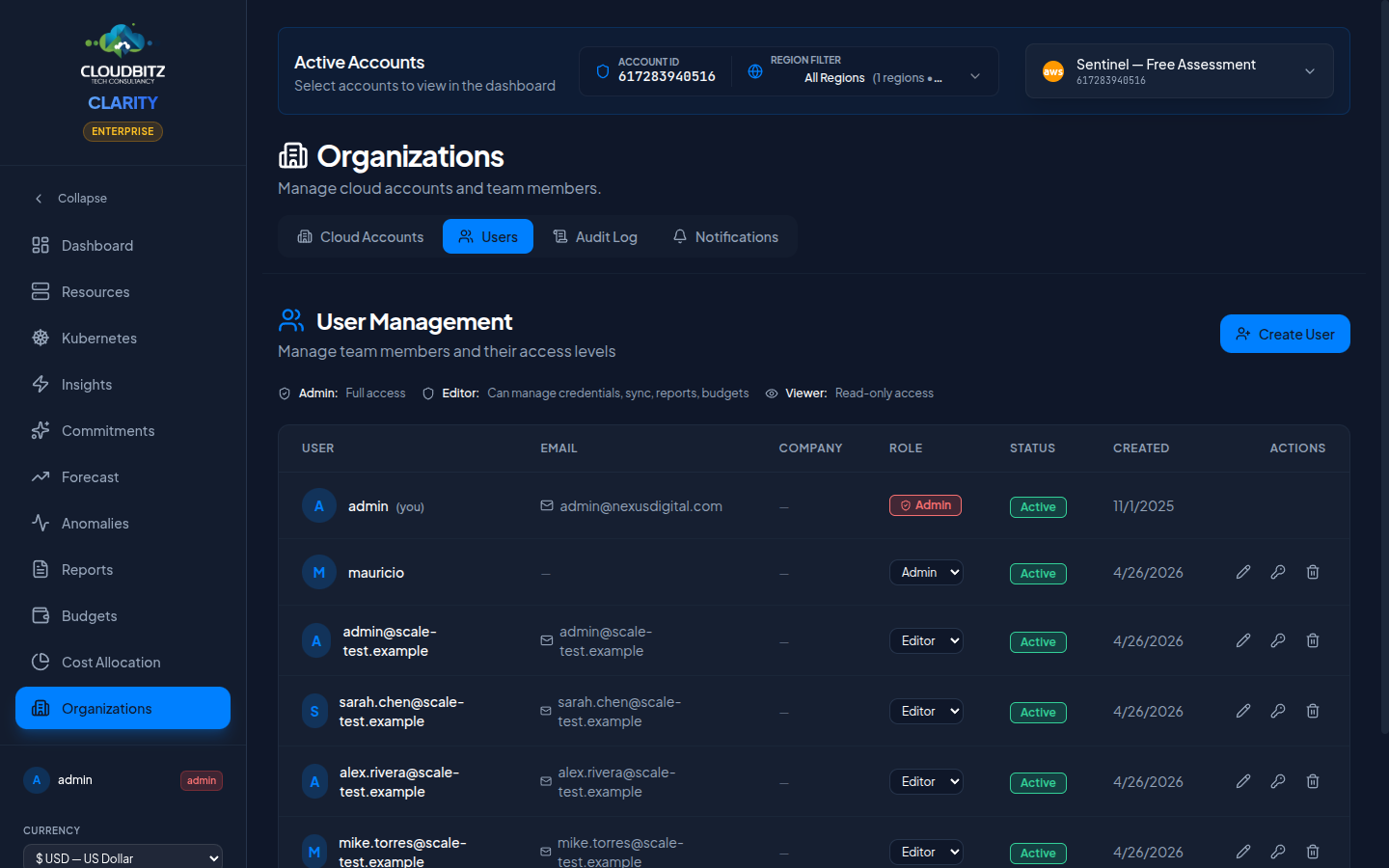
Role overview
| Role | Description |
|---|---|
| Admin | Full platform access including user management and all settings |
| Editor | Operational access to manage cloud accounts, syncs, reports, and budgets |
| Viewer | Read-only access to all dashboards, reports, and data |
INFO
New user accounts are assigned the Viewer role by default. Only administrators can change a user's role.
Detailed permission matrix
| Action | Admin | Editor | Viewer |
|---|---|---|---|
| View dashboards and cost data | Yes | Yes | Yes |
| View recommendations and insights | Yes | Yes | Yes |
| View anomalies and forecasts | Yes | Yes | Yes |
| View reports | Yes | Yes | Yes |
| View audit log | Yes (Business+) | No | No |
| Add/edit cloud credentials | Yes | Yes | No |
| Trigger manual sync | Yes | Yes | No |
| Create and manage budgets | Yes | Yes | No |
| Create and manage cost centers | Yes | Yes | No |
| Configure allocation rules | Yes | Yes | No |
| Generate reports | Yes | Yes | No |
| Generate chargeback statements | Yes | Yes | No |
| Request AI explanations | Yes | Yes | Yes |
| Create user accounts | Yes | No | No |
| Delete user accounts | Yes | No | No |
| Reset another user's password | Yes | No | No |
| Edit other users' profiles | Yes (Business+) | No | No |
| Assign roles | Yes (Business+) | No | No |
| Delete cloud credentials | Yes | No | No |
"Business+" rows
These actions additionally require a Business or Enterprise subscription. An administrator on Starter or Pro will receive a permission error. Creating, deleting and password-resetting users are deliberately available on every tier, because they are how you run the seats you have licensed.
Roles restrict actions, not visibility
Every authenticated user — Viewer included — can see every connected cloud account and all of its cost and resource data. There is no per-user or per-team data partitioning. Requesting an AI explanation is also available to Viewers, and it consumes AI credits.
Role assignment
Only administrators can assign or change roles:
- Go to Organizations and open the Users tab
- Select the user account
- Choose the new role from the dropdown
- Click Save
Role assignment requires a Business or Enterprise subscription.
The role change takes effect on the user's next request. Active sessions are updated automatically.
Choosing the right role
Use Admin for people who need to manage the platform itself — creating users, configuring security settings, and managing the full lifecycle of cloud credentials.
Use Editor for FinOps practitioners, DevOps engineers, and team leads who need to manage cloud accounts, trigger syncs, create reports, and configure cost allocation — but should not manage other users.
Use Viewer for stakeholders, managers, and team members who need visibility into cloud costs and optimization opportunities but should not make changes.
TIP
Follow the principle of least privilege. Start users with the Viewer role and upgrade to Editor or Admin only when they need the additional capabilities.
Next steps
- Learn how to create and manage users
- Review Security settings for your deployment